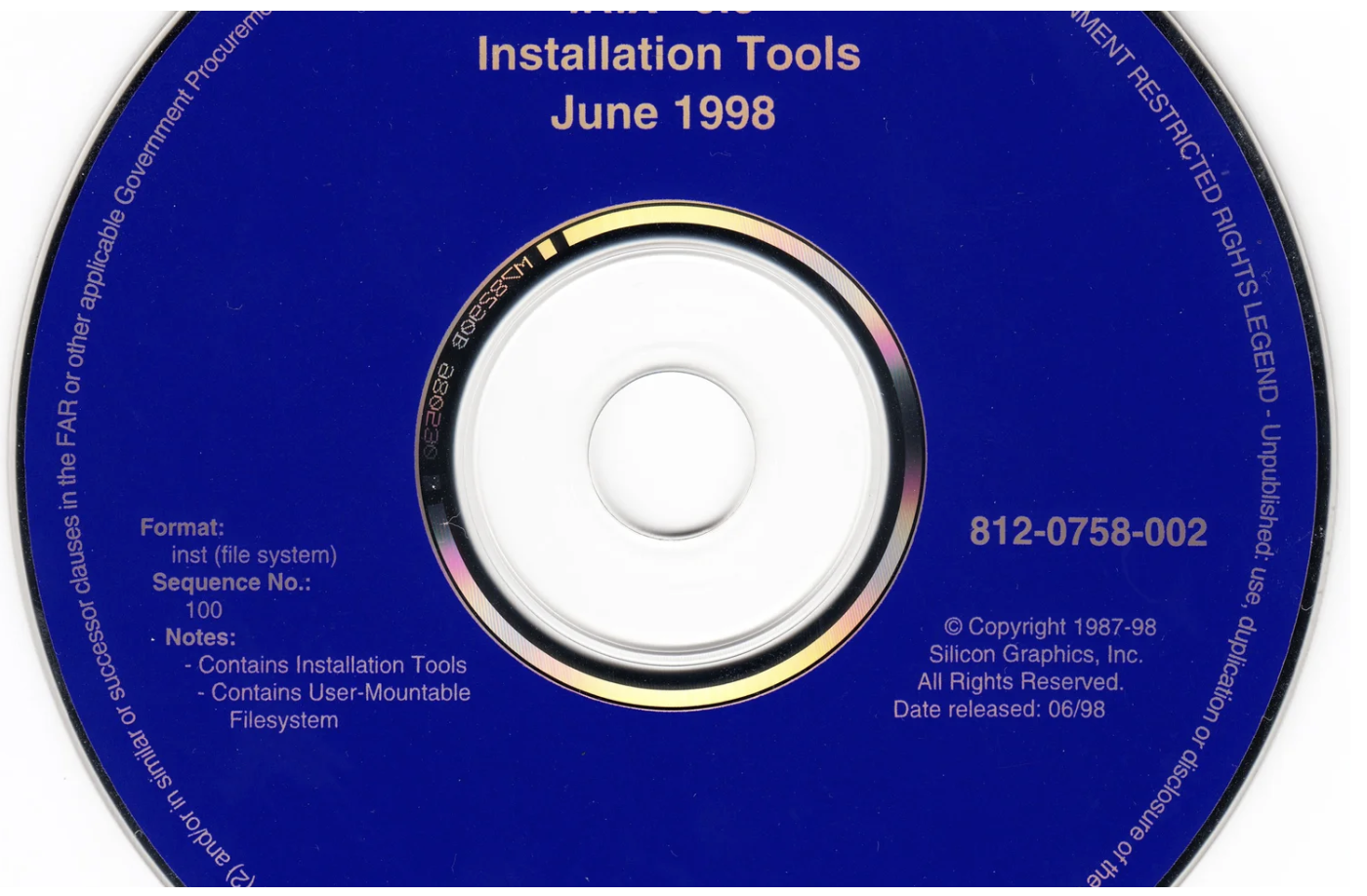
This README covers the IRIX 6.5 images I host on my site oldsilicon.com. I make these images available to help classic workstation enthusiasts get old hardware running more easily. Installing older OS versions can be time-consuming, so the goal of these prototype images is to simplify the process, allowing you to get started quickly and then customize as needed.
Below, you’ll find a checklist of tasks to get your machine up and running on your network. If you end up compiling useful tools and utilities not included in these images, please consider contributing them back to my project for inclusion in future versions.
Machines with an IRIX 6.5 image available
Each machine below has its own per-machine image (hostname and install tuning vary) on its page:
Security notes
These are very old operating systems. An installation of any of them wouldn’t last a minute on the Internet without being hacked, so they should only be used behind a NAT cable modem, firewall, or similar device. Most of these images don’t use passwords by default, so be cautious and add a password after getting the system running for basic security.
I host a SHA1 hash on my site to verify the image you downloaded before booting it.
Since the SHA1 will become invalid once you boot the image, it’s a good idea to verify it right after downloading. If you got this image from another website, I would caution you that one of these images could easily host some code that could infiltrate your home network. Be safe and download a new copy from oldsilicon.com.
For the verification procedure on Mac and Windows, see Image Security and Checksums.
How to use this image
This image was taken from my ZuluSCSI SD card. The OS
installation was from a CD-ROM image, and modified as
described below. I use Zulu RP2040s because they are a bit
faster, but I’m sure other devices will work fine as well.
Format the SD card to ExFAT and place the image on the
card. None of the images require a special Zulu.ini file,
but I encourage you to leave the final part of the name of
the image _512.img as it tells the Zulu to use 512-byte
blocks.
This image should also work on a SCSI2SD if you bit-copy it and configure the card ahead of time. It should work on an actual hard disk, though I haven’t tested this.
Root
There are two accounts on the image: root and guest.
Neither account has a password by default. You can log in
via the visual interface or via telnet. The root account
is set up to be more complete, where the guest account is
exactly as it comes when installed.
Root shell
I’ve compiled tcsh from source, and it’s located in
/usr/local/bin. The root account uses this as its default
shell. If you want to change the root shell, use the IRIX
admin tools.
Telnet
You can telnet into the system using the root account
after changing the IP address.
Many modern machines present themselves as xterm-256color.
You can add a definition to termcap if you like. The
.cshrc file in the root account remaps the terminal to
xterm for common terminals I log in from, but you can
adjust this as needed.
Networking setup
This image is set up for my home network, so you’ll need to
make some changes for it to work on yours. It’s currently
set to 192.168.7.x on the 192.168.7.x network, with my
DNS server at 192.168.7.90.
The easiest way to change the network configuration is to use the EZSetup icon on the graphical login screen. If you’re doing it via a serial connection, you’ll need to look up how to do it via the command line. Generally what you’ll need is a free IP address and the default router.
Configuration files are:
/etc/sys_id— contains the hostname./etc/hosts— contains the IP address for the hostname./etc/config/static-route.options— contains the static route to your router./etc/resolv.conf— update with your nameserver IP and optionally your search domain.
Xserver config
The default IRIX environment has a couple of tweaks for the
root account in .chestrc to add a few menu items to the
toolchest to launch xterms and such. This file is an
account-by-account configuration and only the root account
has been modified.
GNU utilities, compilers, and useful apps
I’m functional at vi but it’s never been my favorite.
I’ve installed my old standby uemacs (microemacs) in
/usr/local/bin. If it’s good enough for Linus Torvalds
it’s good enough for me
(torvalds/uemacs).
GCC is installed on the box from the Freeware CD
distribution that came with the IRIX CD set and resides in
/usr/freeware, as do some other utilities that were on
that CD set.
Troubleshooting
If your machine boots very slowly, see Why is my Disk Image boot so slow? — most cases come down to first-boot RPC timeouts from an unconfigured network, a defective SD card, or a non-contiguous image on the card.
Finally, help
If you find this image helpful and you end up compiling more software using it, please let me know! I would love to keep adding to the image and re-releasing it.
Enjoy!